Photoneo Firmware Updater
Photoneo Firmware Updater is a standalone application that updates the firmware on Photoneo 3D Sensors using a mechanism independent of PhoXi Control.
Firmware Update
Download the desired version of the PhoXi Firmware Updater application
Consult the Versioning guide to ensure compatibility of the Photoneo 3D Sensor and PhoXi Control version with the desired firmware
Run the application:
Double click the application
Run the script from the terminal using the ID of the scanner as an argument (or its IP address). The example below updates the firmware on the device with ID (serial number) DVJ-067
chmod +x ./pho-device-updater-<version> :mark:`- enter the version of the update`
sudo ./pho-device-updater-<version> firmware-update DVJ-067 :mark:`- enter the scanner ID`
Type the ID or IP address of the device you wish to update into the console after the prompt.
Note
If you are using the application on a Windows computer for the first time, you may need to allow it access through your firewall as can be seen below.
Note
It is recommended to avoid using a USB ethernet dongle to connect to Photoneo 3D Sensor.
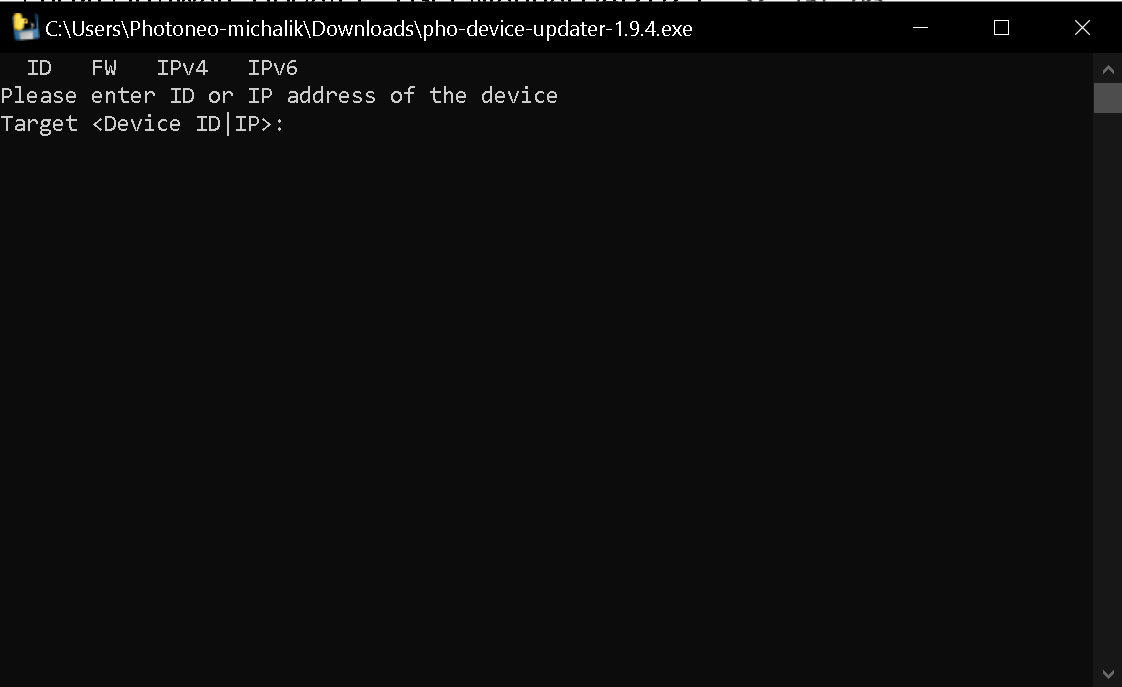
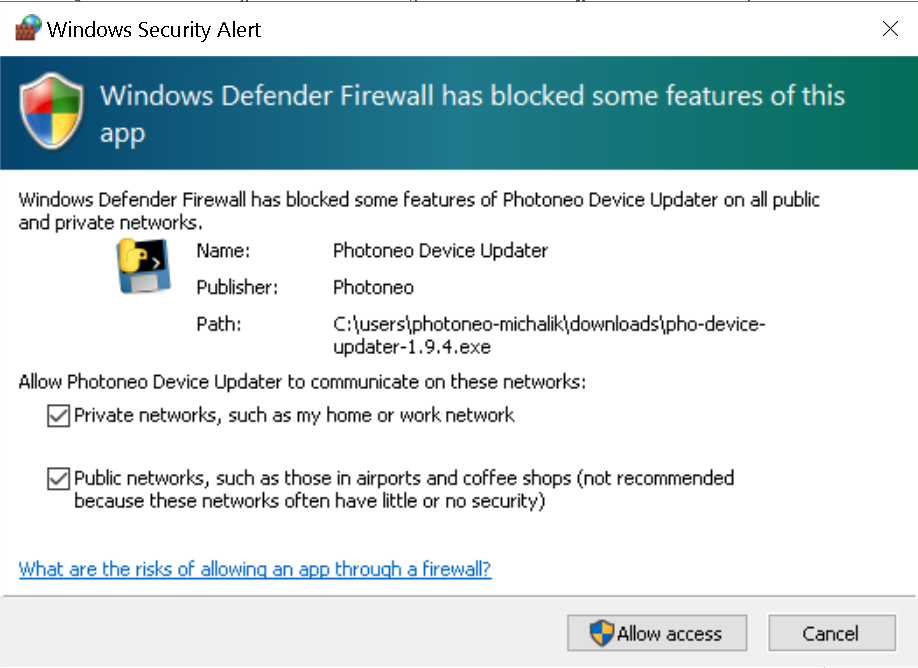
The firmware update takes around one minute to complete. The utility will create a backup file in the directory alongside the executable. After a successful update the device reboots.
Note
In case your device does not support the firmware version you are trying to update to, you will encounter the following error message. Please, consult the Versioning guide to find out which firmware versions are supported by your device.
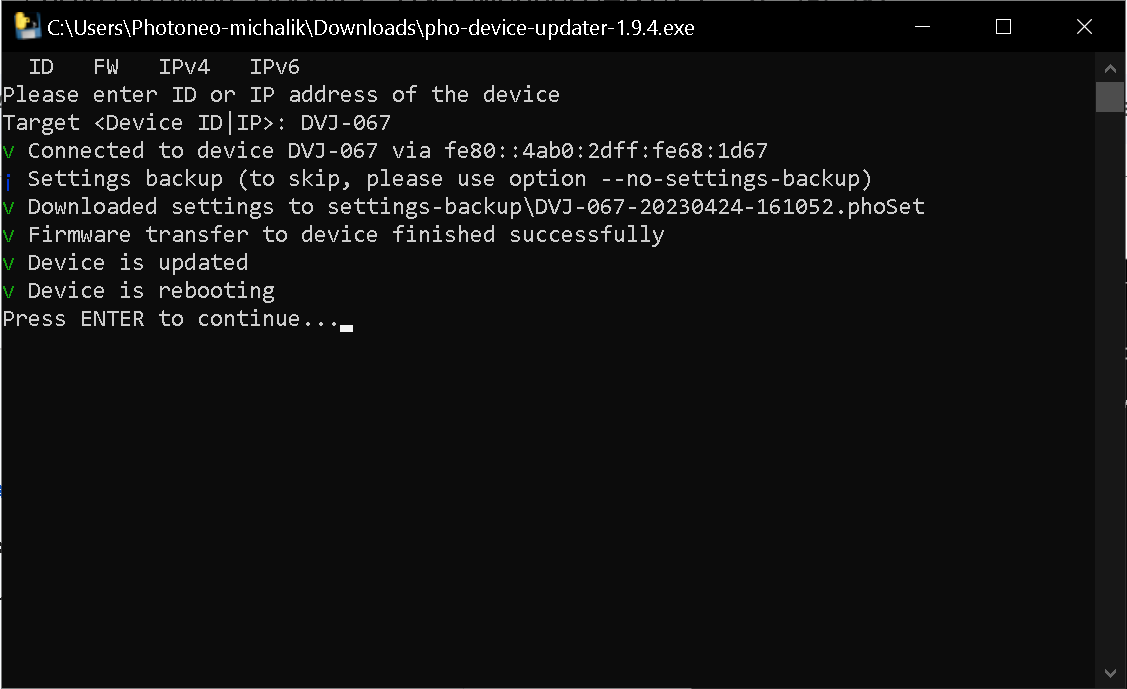
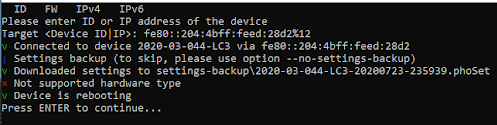
Optionally, after the firmware update, backup the
settings-backupfolder which is created after a successful firmware update - without this file, the device cannot be downgraded to its previous firmware versionTo confirm a successful firmware update, check the firmware version displayed in PhoXi Control.

Firmware downgrade
In order to perform a firmware downgrade, the following conditions need to be fulfilled:
A settings backup file from the firmware version you are downgrading to is required to perform the downgrade (refer to section Firmware Update to create a backup file during the firmware upgrade)
The desired firmware cannot be lower than the firmware version the device was shipped with
Download and run the PhoXi Firmware Updater for the desired firmware version following the exact instructions from the Firmware Update.
Upload the settings backup file to the device
Open the command prompt in the folder that contains the firmware updater
Press Alt+D to focus the address bar
Type
cmdand press Enter
Run the firmware updater with the arguments
settings-restoreUse the following command:
.\pho-device-updater-<updater version>.exe settings-restore --file .\\settings-backup\\<Device ID|IP>.phoSet <Device ID|IP>
For example, the following command restores the settings from the
CTR-059.phoSetbackup file (located in the same directory as the updater) to the device after the downgrade:
.\pho-device-updater-1.2.39.exe settings-restore --file .\\settings-backup\\CTR-059.phoSet CTR-059
Note
For more information about using the firmware updater for restoring the settings, use the following command:
.\pho-device-updater-1.2.39.exe settings-restore -h
FAQ
Are my settings/custom profiles going to be erased during the update? - No, all of the settings should be preserved. However, it is advised to back up your custom scanning profiles before performing the update.
Can I revert the update/downgrade? - Yes, follow the instructions in the Downgrade section
Are my settings/custom profiles going to be erased during the downgrade? - In most cases, all settings should be preserved. However, a situation where the older firmware does not contain all the parameters the newer firmware does can result in inconsistencies.
What should I do if the update fails and the device is fully operational? - the device is fully operational? - Repeat the process using the other device identification method - ID/IP address. If the problem persists, contact us at the Help Center.
What should I do if the update fails and the device is not working? - Contact us at the Help Center with device logs. Refer to the PhoXi Control User Manual on how to download logs from a device.
What if there is a network interruption during the update? - If there is a network interruption during the update, the update process may fail. You should try to restart the update process once the network connection is restored. Avoid USB ethernet dongles, especially with Realtek chipset, as the transfer of bigger data may occasionally fail.
What if the computer powers off during the update? - If the computer powers off during the update, the update process may fail. You should try to restart the update process once the computer is restarted.
Does PhoXi Control need to be running during the update? - No, it does not have to. Make sure that the device which is being updated is not occupied.
Do all firmware versions work on all devices? - No, each firmware version is suitable for a different range of Photoneo 3D Sensors. Please, consult the Versioning guide before proceeding with an update.
How do I know which firmware is compatible with my device? - Consult the Versioning guide
Is newer firmware backward compatible with older PhoXi Control/PhoXi API? - Yes
What do I do if my PhoXi 3D Scanner cannot be updated because:
it is Gen 1 Scanner? -If your PhoXi 3D scanner is a Gen 1 model, it cannot be updated to a firmware version higher than 1.2.38. Consult the Versioning guide for further info.
it is Gen 2 Scanner shipped before November 2021? - If your PhoXi 3D scanner is a Gen 2 model shipped before November 2021, it cannot be updated to a firmware version higher than 1.2.38 due to the underlying platform incompatibility. Consult the Versioning guide for further info or contact the Help Center to inquire about possible underlying platform upgrade.